

Table of Contents
The MacBook Pro Notch Still Causes Problems for Some Users
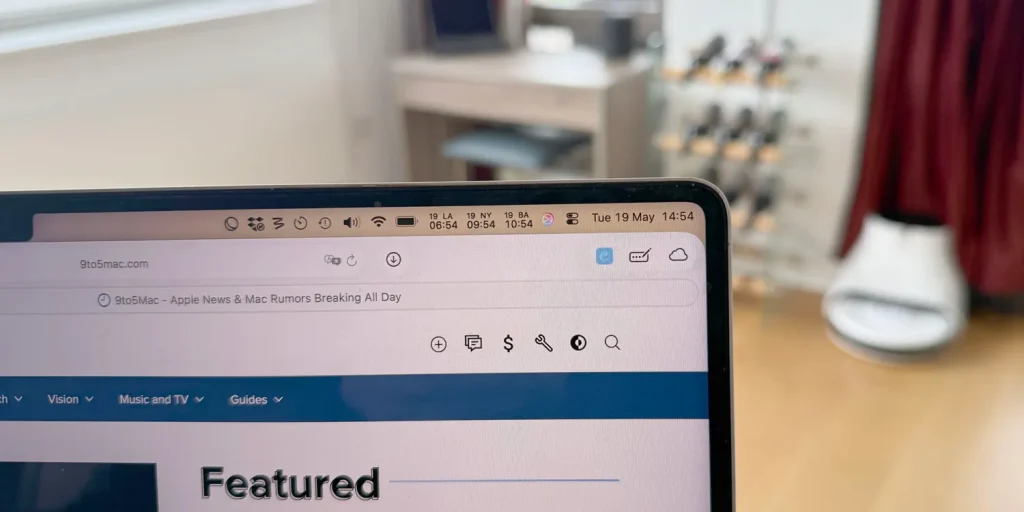
Apple’s modern MacBook Pro design includes a display notch at the top of the screen, but many users still experience issues where menu bar icons and app controls disappear behind it.
This becomes especially frustrating for users who:
- Use many menu bar apps
- Work with productivity tools
- Keep multiple status icons active
- Use smaller display scaling settings
Fortunately, there are several ways to reduce or completely fix the problem.
Why Menu Bar Items Disappear Behind the Notch
The notch takes up space in the center of the menu bar area.
When too many menu bar items are active, macOS may:
- Hide icons automatically
- Push icons behind the notch
- Remove less important items temporarily
- Rearrange app controls unexpectedly
This happens more often on smaller MacBook Pro screen sizes.
Method 1: Remove Unnecessary Menu Bar Apps
The easiest fix is reducing the number of active menu bar icons.
You can:
- Disable unused startup apps
- Remove rarely used utilities
- Hide background tools
- Limit persistent status icons
This frees up more menu bar space and reduces overlap near the notch.
Method 2: Rearrange Menu Bar Icons
macOS allows users to manually rearrange many menu bar items.
To move icons:
- Hold the Command key
- Click and drag menu bar icons
- Place important icons farther away from the notch
Keeping critical tools closer to the right edge can help prevent them from disappearing.
Method 3: Use “Automatically Hide and Show the Menu Bar”
Enabling auto-hide for the menu bar creates more screen space and may reduce clutter.
To enable it:
- Open System Settings
- Go to Desktop & Dock
- Find Menu Bar settings
- Enable “Automatically hide and show the menu bar”
This keeps the menu bar hidden until needed.
Method 4: Reduce Display Scaling
Certain display scaling modes can make the notch issue worse.
Switching to:
- Default scaling
- More space modes carefully
- Balanced resolution settings
may improve menu bar spacing.
Method 5: Use Full-Screen App Compatibility Mode
macOS includes a compatibility setting called:
- “Scale to fit below built-in camera”
This option prevents apps from extending into the notch area.
To enable it:
- Open Finder
- Go to Applications
- Right-click the app
- Select Get Info
- Enable “Scale to fit below built-in camera”
This works especially well for older apps with layout problems.
Third-Party Apps Can Help Too
Some third-party utilities help organize menu bar icons more efficiently.
These tools can:
- Collapse icons automatically
- Create hidden sections
- Improve menu organization
- Reduce clutter
However, many users may not need extra apps if they optimize macOS settings properly.
Apple Has Improved the Situation Over Time
Apple has gradually improved notch behavior through macOS updates.
Recent versions of macOS handle:
- Menu spacing better
- App compatibility more smoothly
- Icon overflow more intelligently
Still, heavy menu bar users can continue experiencing limitations.
Future macOS Updates May Improve This Further
Reports suggest Apple continues refining:
- Menu bar behavior
- Window management
- Notch compatibility
- Dynamic interface scaling
Future macOS updates could improve the experience further, especially on smaller MacBook Pro models.
Why the Notch Remains Controversial
Some users appreciate the extra screen space the notch design creates.
Others still dislike:
- Lost menu space
- Hidden icons
- Visual inconsistency
- App compatibility issues
The debate around Apple’s MacBook notch design continues even years after its introduction.
Best Fix for Most Users
For most users, the best solution is:
- Reducing menu bar clutter
- Rearranging icons
- Using auto-hide mode
- Enabling compatibility settings for problematic apps
These steps usually solve the issue without additional software.
FAQ: MacBook Pro Notch Menu Bar Issue
1. Why are my menu bar icons disappearing behind the notch?
The notch reduces available menu bar space, causing icons to overflow or hide.
2. How can I rearrange menu bar icons?
Hold the Command key and drag supported icons to a new position.
3. What does “Scale to fit below built-in camera” do?
It prevents apps from extending into the notch area and improves compatibility.
4. Does macOS automatically hide some icons?
Yes. macOS may hide or rearrange icons when space becomes limited.
5. Can future macOS updates improve this issue?
Yes. Apple continues refining menu bar and notch behavior in newer macOS versions.